> For the complete documentation index, see [llms.txt](https://docs.datajet-app.com/llms.txt). Markdown versions of documentation pages are available by appending `.md` to page URLs; this page is available as [Markdown](https://docs.datajet-app.com/integrations/shopify-flow/v2.md).
# V2
The second version of the DataJet / Shopify integration leverages the latest updates to the Shopify Flow integration, such as:
* Structured data in event triggers
* Processing responses returned to action triggers
Additionally, DataJet flow event triggers now include context information, such as:
* Script ID
* Run ID
* Script handle
### Event trigger
To start a flow from DataJet, you will need to complete two steps:
1. In DataJet, create a script that triggers the flow using the `flow_v2` filter.
2. In Shopify Flow, create a flow with the `Event Payload Trigger V2`
A sample script to trigger the flow is:
```
{% json payload %}
{
"name": "Mat",
"age": 32
}
{% endjson %}
{% flow payload:payload as result %}
{% log result %}
```
To create a Shopify Flow start by adding `Event Payload Trigger V2`:
{% hint style="info" %}
If you have multiple flows responding to the same event - all flows are triggered.
{% endhint %}
After the event trigger block, you might want to add an "if" block to check the Script ID and ensure you only respond to events coming from a specific script:
In the example above, we also log the payload passed to the flow from DataJet. This payload will be passed as stringified JSON. This is why we use a "Run code" block next to parse the stringified JSON into JSON:
After this, we can access our payload properties in the next blocks using the following syntax:`{{runCode.payload.name}}`.
The flow above can be easily imported using this file (after importing, update the Script ID in the second block to match your script ID).
{% file src="/files/sL4D75hw5CddJFfElkdq" %}
### Action trigger
With Flow action triggers, you can trigger any script in DataJet. Depending on the outcome of the script execution, you can return either a success or error response to Shopify Flow and take corresponding actions.
The following two steps need to be completed:
1. In DataJet, create an HTTP script
2. In Shopify Flow - add the `Action Trigger V2` trigger
To create an HTTP script, select the "Add new HTTP script" button from the left-hand side navigation in DataJet. Next, you can use the following sample code:
```
{% assign flow_payload = request.body.properties.payload | default: "null" | parse %}
{{ flow_payload.email | log }}
{% json response %}
{
"body": {
"return_value": {
"status": "SUCCESS",
"message": "OK"
}
}
}
{% endjson %}
```
The code above reads the `email` property sent through Action Trigger V2 and logs it. After that, we return a success response to Shopify Flow. If you want to return an error response, replace `SUCCESS` with `ERROR`. Use the `message` field to send additional information.\
\
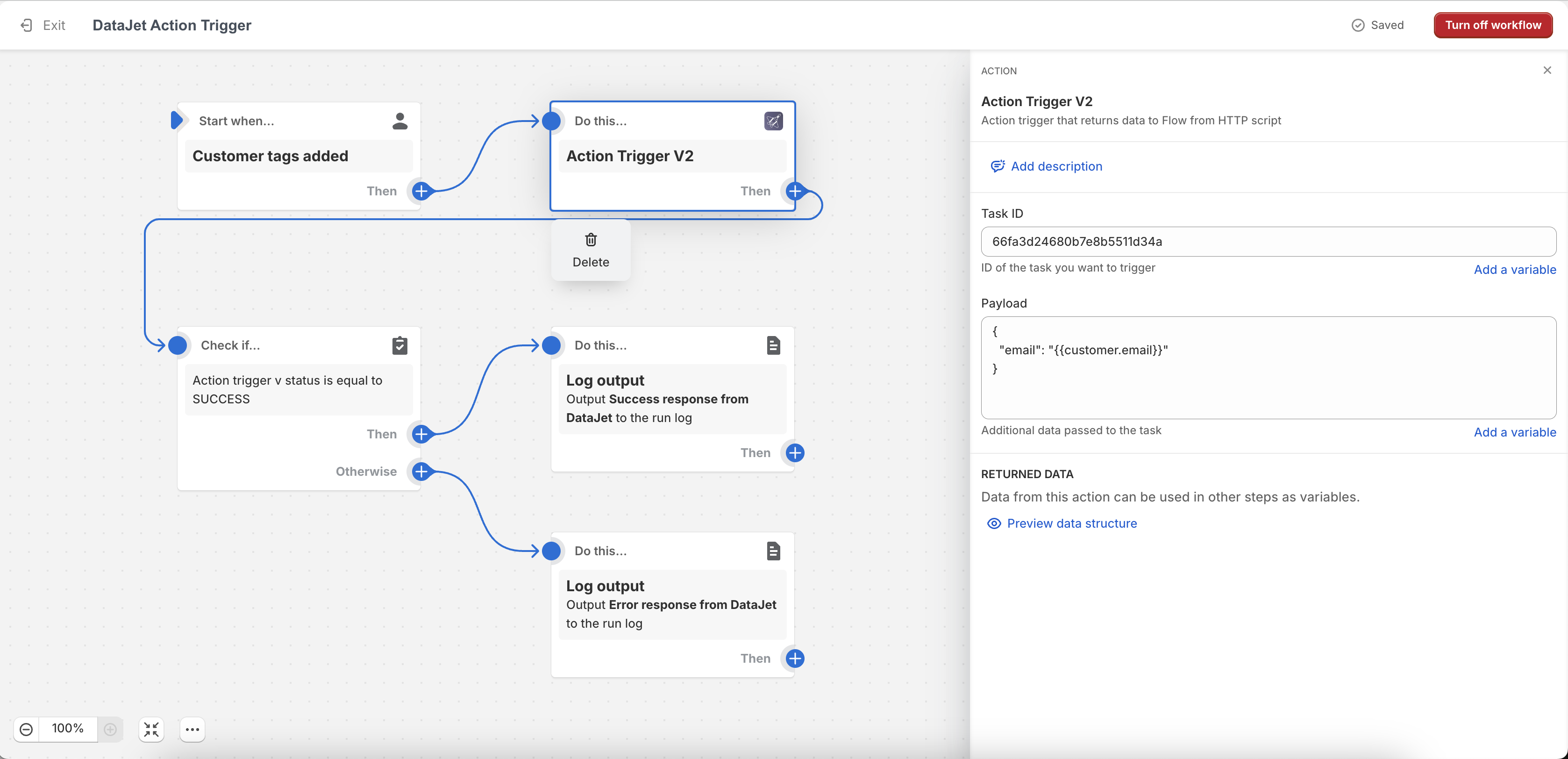
Your sample flow could look like this:
{% hint style="info" %}
Replace Task ID with your script id from DataJet dashboard.
{% endhint %}
{% hint style="info" %}
Requests from Shopify Flow are verified using Shopify's signature, so you don't need to pass a token. Tasks with "Enable token validation" or "Accessible only via Shopify proxy" enabled can be triggered from Flow without any extra configuration.
{% endhint %}
The flow above monitors changes to customer tags. When a tag is added, it sends a payload to DataJet with the customer's email. Next, if it receives a success response, it logs a success message; otherwise, it logs an error message.\
\
Above flow can be imported with this file:
{% file src="/files/8XEUobi3VXzTk2xMIpfp" %}
{% hint style="info" %}
The flow waits 10 seconds for an action response. After this time, the action resends the request. This is why it is important to ensure that your DataJet script processes the request in less than 10 seconds. You can use the run filter to delegate the logic to another task.
{% endhint %}